
Installation
CommissionCentral is an extension for Microsoft Dynamics 365 Business Central, Microsoft’s ERP software. It manages sales commissions inside Business Central. It calculates commission as sales documents post, divides it between agents, and records each commission entry in a ledger. Payment batches settle those entries through Accounts Payable or payroll. You install it from the AppSource Gallery.
Requirements
| Requirement | Value |
|---|---|
| Business Central | Version 28 or later (Runtime 17.0) |
| Deployment | Business Central Online (Production or Sandbox Environment) |
| Dependencies | None beyond the Business Central base and system applications |
Install from AppSource (production / sandbox)
- In Business Central, choose search (Tell Me) and open Extension Management.
- Choose the AppSource Gallery action.
- Search for CommissionCentral (publisher BCAppCo), then choose its name.
- Choose the Install App action.
- Follow the prompts to install the app into your environment. The installation runs the app’s install logic automatically. See What the install creates, below.
Use a sandbox environment for evaluation. A sandbox also lets you load the demo data.
What the install creates
At install, and on upgrade, CommissionCentral creates the records you may need to start. Each step is idempotent — it does not create duplicates:
- Number series
COMM-PAY— numbers the payment batches, and starts atCPAY-00001. - Payroll journal
COMM-PAYJ— the general-journal template and batch that receive the staged payroll payout lines. You map its accounts during setup. The install creates it as a Payments-type template with the standard Payment Journal source code. Its batch takes numbers from theCOMM-PAYnumber series. - Assisted Setup & Manual Setup entries — the install registers Set up CommissionCentral in the standard Assisted Setup list and in the Manual Setup list (category Set up Commissions). One choice opens the Commission Setup card.
The install does not create a commission plan. You create the plans yourself. The engine does not calculate commission until you create a plan and activate it. See Commission plans.
A sandbox that loads the demo data also gets a DEFAULT plan. That plan is
inactive and has one wildcard rule at 0%, so it stays inert until you activate it.
The single Commission Setup record (see the Commission Setup card) is created the first time you open the card and enter values. It gets safe defaults, for example a Cash % Threshold of 100. On a fresh sandbox, the absent record is what makes the demo-data offer show when you first open the card.
After installing
- Assign the permission sets to your users.
- Open the setup from Assisted Setup or Manual Setup. Complete the Commission Setup card.
- Enter and validate your license key.
- (Sandbox only) Load the demo data to examine a worked example, or go directly to your first commission.
Uninstalling
- Open Extension Management.
- Find CommissionCentral in the list.
- Choose Uninstall from the Actions menu.
- Business Central asks what to do with the extension data. Choose to delete the data, or to keep it.
If you keep the data and install the app again, it uses your existing setup, plans, agents, and ledger without changes.
If you delete the data, the app removes its configuration and commission records. This cannot be undone. A later install starts empty.
To remove the app from the environment completely, choose Unpublish on the Extension Management page after you uninstall it.
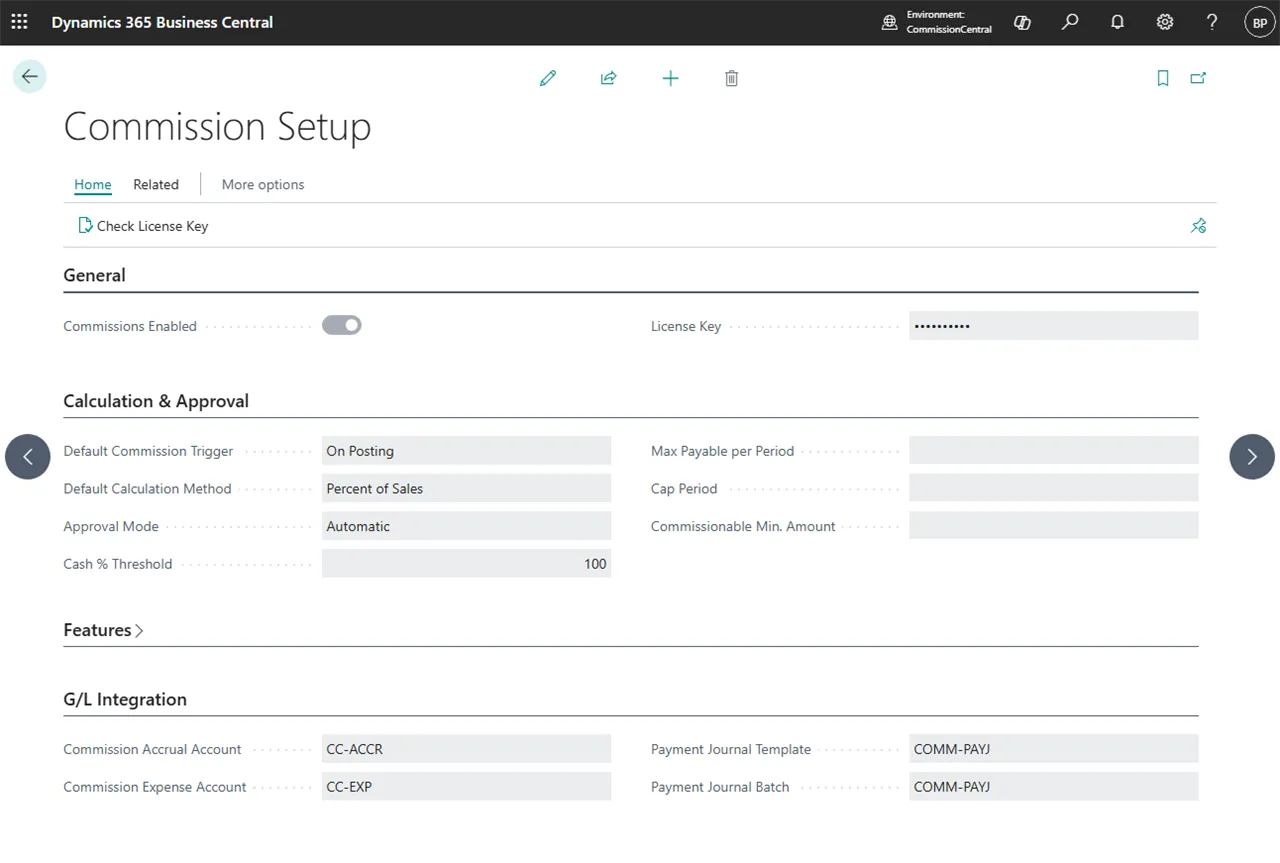 Figure: the Commission Setup card.