
Commission Setup card
The Commission Setup page (search → Commission Setup) holds the single, company-wide configuration for CommissionCentral. There is one setup record. The app creates it automatically, and you cannot delete it.
The settings here are defaults and policy. A commission plan can override the trigger, the method, and the cap. An agent assignment selects the plan. Configure this card before you turn commissions on.
General
| Field | Purpose |
|---|---|
| Commissions Enabled | The master switch. While it is off, the app calculates and posts no commission when documents post. Turn it on when the rest of the setup is complete. |
| License Key | Your CommissionCentral entitlement key (masked). See Licensing. |
Calculation & approval
| Field | Purpose |
|---|---|
| Default Commission Trigger | When the agent earns commission, for plans that do not override it: On Posting (at invoice posting), On Payment (when the customer pays — see Cash % Threshold), or On Shipment (at shipment posting, trued up at invoice). |
| Default Calculation Method | The default calculation basis: Percent of Sales, Percent of Margin, or Flat Per Unit. |
| Approval Mode | Automatic promotes eligible entries directly to Payable. Review holds them until a user releases them. See Ledger & audit. |
| Cash % Threshold | For the On Payment trigger: the percentage of the invoice that the customer must pay before the commission becomes payable. Default 100 (full collection). |
| Max Payable per Period | The company-wide cap on net payable commission for each period. 0 means no cap. A plan can set a lower cap. |
| Cap Period | The period the cap applies to (blank = open-ended). |
| Commissionable Min. Amount | A sales line below this amount earns no commission (0 = no minimum). |
Cap first, then draw. When both apply, the app applies the cap first. It then nets the draw balance against the capped amount. Draw netting does not make the net payable go below zero. A correction entry (a reversal or a downward adjustment) carries a negative net payable. This negative amount gives back cap room and reduces the next payment batch. See Payments → Draws.
Features
Turn the optional capabilities on or off. A disabled feature hides its UI. The calculation skips a disabled feature.
| Toggle | Enables |
|---|---|
| Draw Enabled | Draw advances, and draw netting against earned commission. |
| Networks Enabled | Automatic agent assignment by customer attributes when a customer is created. |
| Manager Hierarchy Enabled | Manager-team commission entries on top of the earning agent’s commission. |
G/L integration
Commission changes the general ledger only at payment, not at calculation. The app uses these accounts and the payroll journal when a payment batch posts.
| Field | Purpose |
|---|---|
| Commission Accrual Account | The liability/accrual account. The app credits it when commission is settled. |
| Commission Expense Account | The expense account. The app debits it when commission is paid. |
| Payment Journal Template | The general-journal template that receives the staged payroll payout lines. Default: COMM-PAYJ, a Payments-type template with the standard Payment Journal source code. |
| Payment Journal Batch | The batch in that template. Default: COMM-PAYJ, which takes numbers from the COMM-PAY number series. |
Actions
- Check License Key — validates the stored license key against the platform, and shows whether the key is valid. See Licensing.
Navigation
A Commissions navigation group connects the setup card to the rest of the commission surface. You can move from the setup directly into the related pages:
- Salespersons/Purchasers — opens the list of salespeople. A salesperson is the commission agent. The card holds the agent type, the default commission plan, the vendor or employee to pay, the draw balance, and the commission target. See Agents and splits.
- Commission Plans — opens the list of commission plans. (also promoted to the ribbon)
- Commission Networks — configure networks that group agents.
- Manager Teams — configure manager teams for hierarchy commission.
- Commission Journal — opens the Commission Journal to examine and post commission lines. (also promoted to the ribbon)
- Commission Ledger Entries — opens the commission ledger.
- Payment Batches — opens the list of payment batches.
- Reports → Commission Audit — runs the Commission Audit report. The report explains how the app calculated each commission amount.
- Reports → Commission Summary — runs the Commission Summary report. The report totals the commission for each salesperson, with a status breakdown.
Turn it on
Make sure the defaults, the approval mode, the accounts, and your first plan are ready. Then set Commissions Enabled to on. From that point, a posted commissionable sales document creates commission entries automatically.
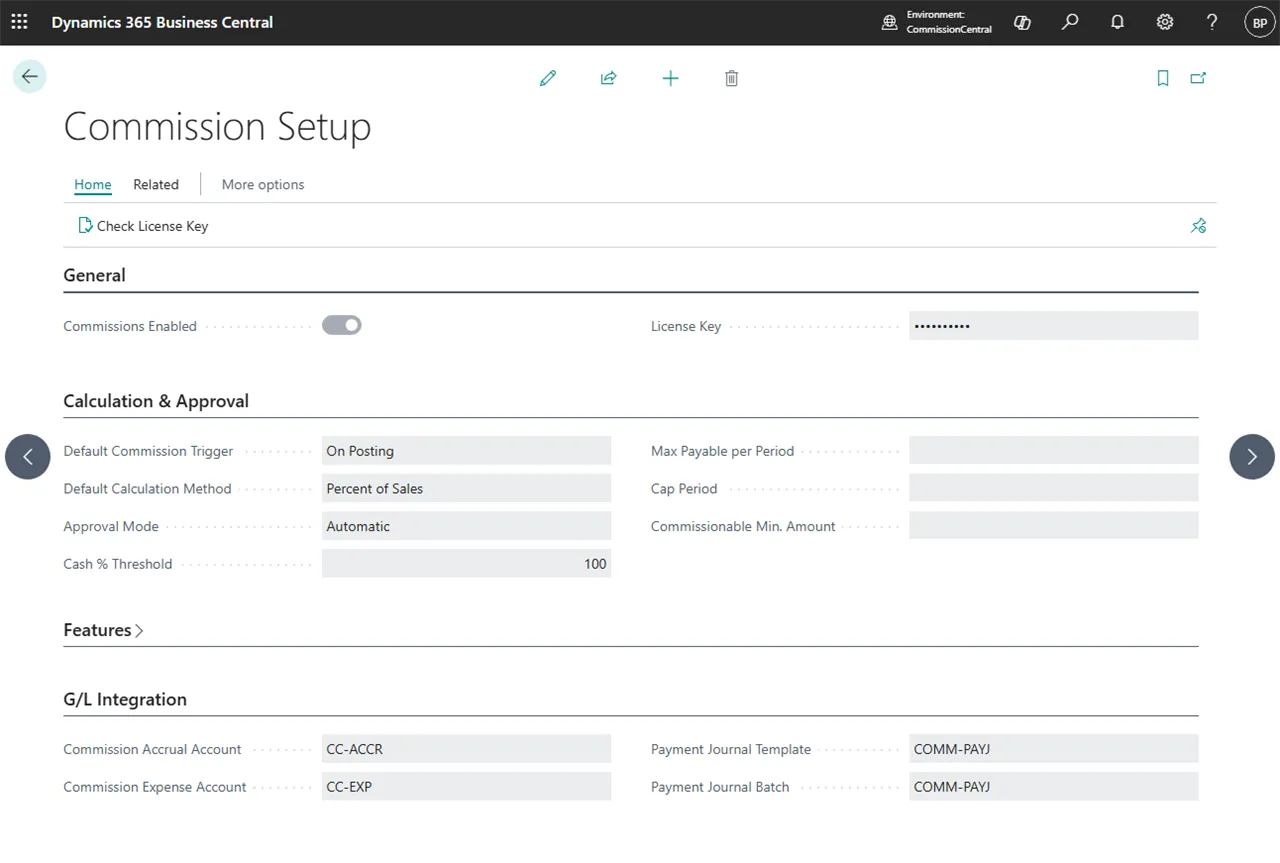 Figure: Commission Setup.