
Assisted Setup
CommissionCentral registers an Assisted Setup entry and a matching Manual Setup entry. Administrators find the setup where they expect it. There is no multi-step wizard — both entries open the Commission Setup card directly. You configure the app on that one card.
Open the setup
From Assisted Setup:
- Choose search (Tell Me) → Assisted Setup.
- Search for Set up CommissionCentral, and choose it.
From Manual Setup:
- Choose search (Tell Me) → Manual Setup.
- Under the Set up Commissions category, choose Set up CommissionCentral.
Both entries open the Commission Setup card.
What the setup card gives you
The card is the full configuration surface. There is no separate baseline step to complete first. On the card you set the values that control calculation:
- The default trigger and method.
- The approval mode.
- The cash-collection threshold and the caps.
- The feature toggles: draw, networks, manager hierarchy.
- The G/L accrual and expense accounts, and the payment journal.
Enter your license key on the same card. Use Check License Key to validate it.
The single Commission Setup record is created the first time you enter values on the card. Open the card and enter your values — no other step is necessary.
Demo data offer (sandbox only)
Open the Commission Setup card in a sandbox company that has no configuration. The app then offers to load demo data. If you accept, the app creates a full configuration: commissions enabled, a TRIAL license, demo G/L accounts, and the payment journal. It also creates sample customers, items, commission plans, agents, an agent-assignment split, a commission network, and a manager team. You can then examine a working configuration immediately. See Demo data for details.
Recommended order
- Open the Commission Setup card from Assisted or Manual Setup. Complete the configuration.
- Enter your license key. Validate it with Check License Key.
- Create your first commission plan and assign an agent.
If you evaluate in a sandbox, accept the demo data offer on first open. The offer creates all of the above for you.
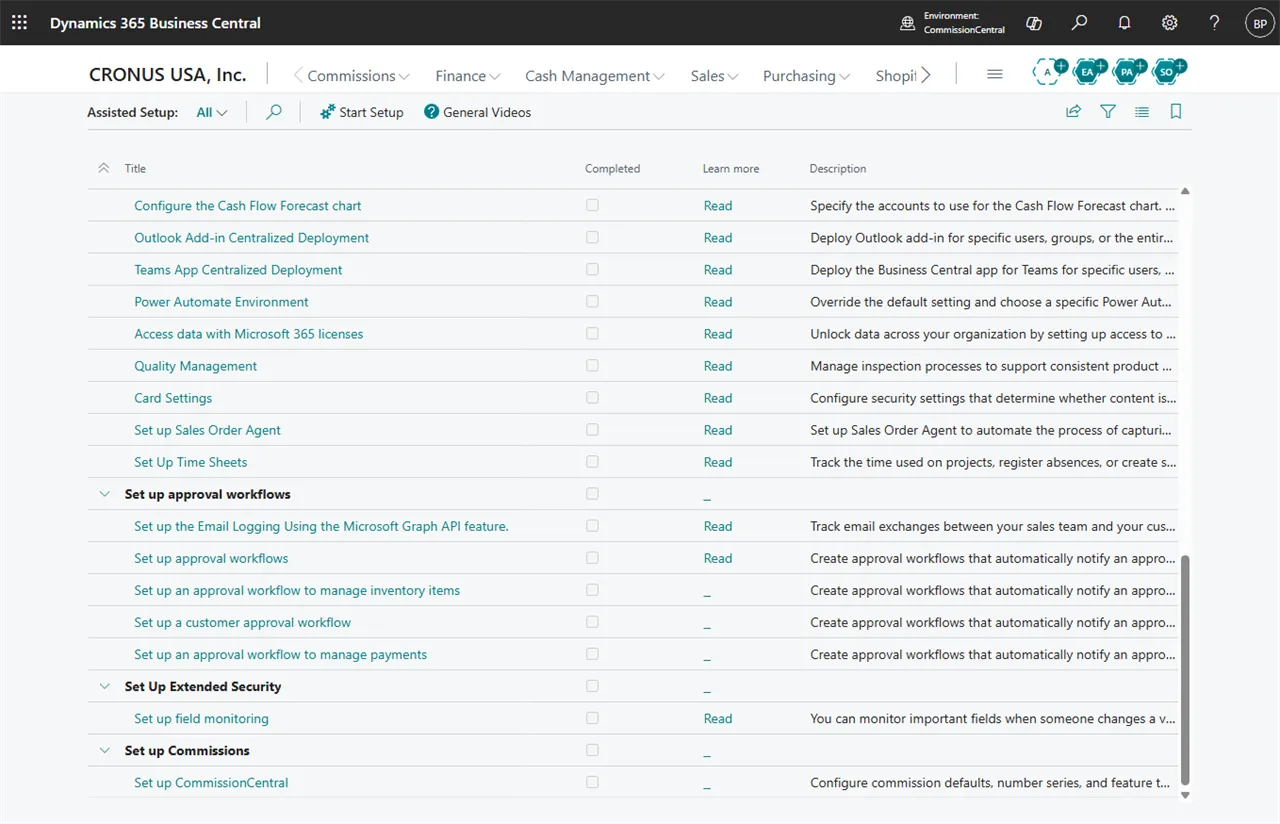 Figure: the Assisted Setup list. The entry sits under the Set up Commissions group.