
UC-01 · Your first commission — flat rate, single agent
This walkthrough takes you from a configured install to a calculated commission entry. You create a 5%-of-sales plan. You assign one agent to a customer at 100%. You post a $10,000 invoice. You then confirm a $500 commission entry with a full audit breakdown.
Expected result: one commission ledger entry, Commission Amount $500, status Calculated.
Before you start
- The setup is complete, and Commissions Enabled is on.
- Your license is valid, or the trial is active.
- You have the Admin/Implementer permission set.
- You have a customer and a salesperson to work with, or use a demo one.
Step 1 — Create the commission plan
- Choose search → Commission Plans, then New.
- On the Commission Plan card, set:
- Code — for example
FLAT5 - Description — for example
Flat 5% of sales - Active — on
- Default Trigger — On Posting
- Default Calc Method — Percent of Sales
- Code — for example
- Leave Effective Date / Expiration Date blank. The plan then stays valid.
Step 2 — Add the rate rule
On the plan card, in the Rate Rules subpage, add one line:
| Field | Value | Why |
|---|---|---|
| Priority | 10 |
The first (and only) rule to match |
| Calc Method | Percent of Sales | Commission = sales × rate |
| Rate Pct | 5 |
The 5% rate |
Leave the filter fields (Salesperson Code, Customer No., Item No., …) blank. Blank means wildcard, so this rule matches any commissionable line. Leave Tiered off.
How rules resolve. The engine reads the rate rules by ascending Priority. It uses the first rule whose filters match. A single blank-filter rule matches any line. No match is not an error — the line simply earns no commission.
Step 3 — Assign the agent to the customer
- Open the Customer Card for your test customer.
- On the Commission Agents subpage, add a line:
- Salesperson Code — your salesperson
- Split % —
100 - Agent Type — Internal Employee (the payee type; it does not change this calculation)
- Leave Ship-to Code blank (the assignment applies to the whole customer). Leave Use Assignment Plan off, so the agent uses the active plan.
Splits total 100%. When a customer/ship-to has two or more agents, their active splits must total exactly 100%. A single agent defaults to 100%.
No assignment? If a customer has no agent assignment, the commission goes to the sales document’s Salesperson Code at 100%. With no salesperson either, no agent earns commission, and the app logs a warning.
Step 4 — Post a $10,000 sales invoice
- Create and release a Sales Invoice for that customer, with lines that total $10,000 of a commissionable item.
- (Optional) Before you post, choose Preview Commission on the Sales Invoice. The preview shows what the invoice earns, with no side effects (nothing posts).
- Post the invoice.
Step 5 — Read the commission entry
-
Choose search → Commission Ledger Entries.
-
Find the new entry for your salesperson and customer. It shows:
Field Value Status Calculated Calc Method Percent of Sales Rate Pct 5 Basis Amount 10,000.00 Commission Amount 500.00 Net Payable Amount 500.00 -
Open the entry (Commission Ledger Entry card) and examine the Detailed Entries subpage. The audit breakdown shows the method, the rate, and the basis behind the $500. The stored detail explains the commission amount.
Why Calculated and not Payable? Your Approval Mode is Review, so the entry waits for a release. In Automatic mode, the entry becomes Payable immediately. Release and Ledger & audit and Payments cover release and payment.
What you proved
- A plan, one wildcard rate rule, and a 100% assignment produce commission automatically at posting.
- The result is $500, and the stored detail supports it.
- The preview shows the same figure without a post.
Next
- Split the commission across two agents → UC-03.
- Reward higher volumes with tiers → UC-02.
- Pay it out → Payments.
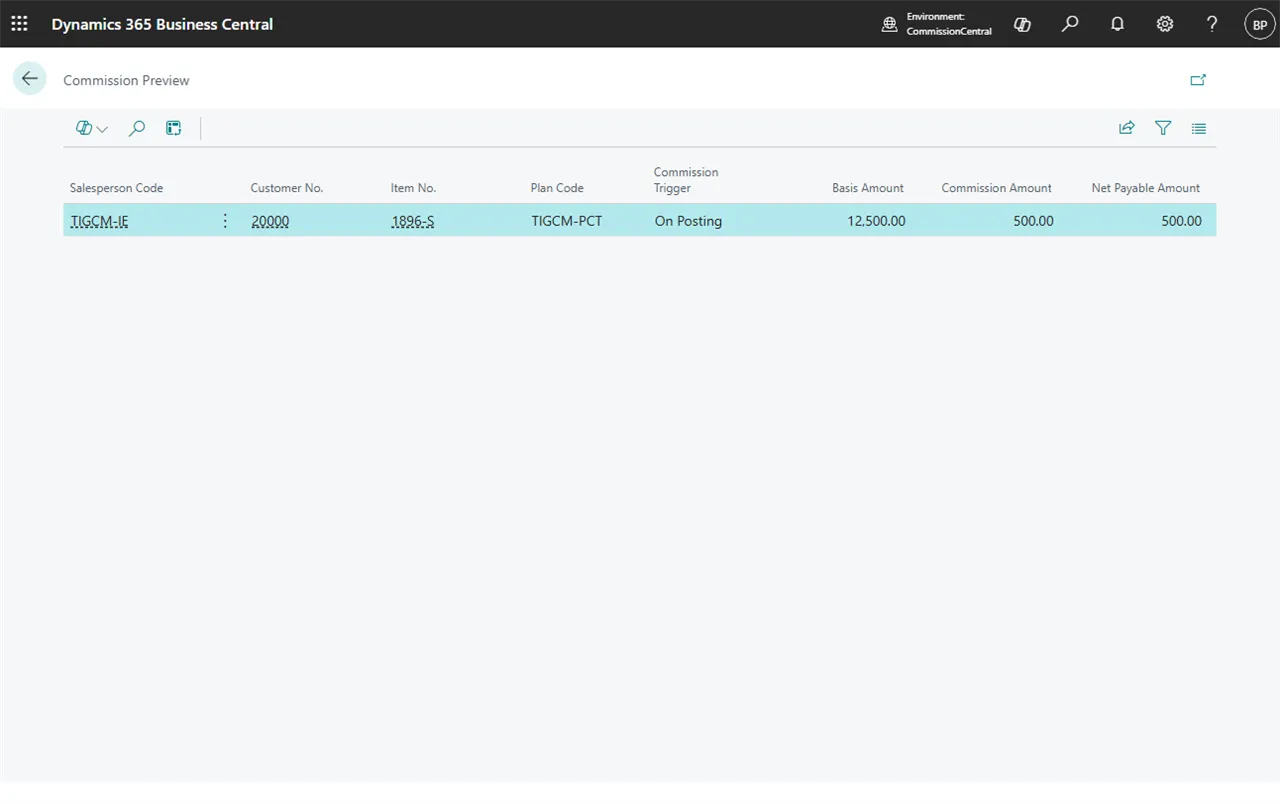 Figure: the Preview Commission result for Step 4. It shows what the document earns, and it posts nothing.
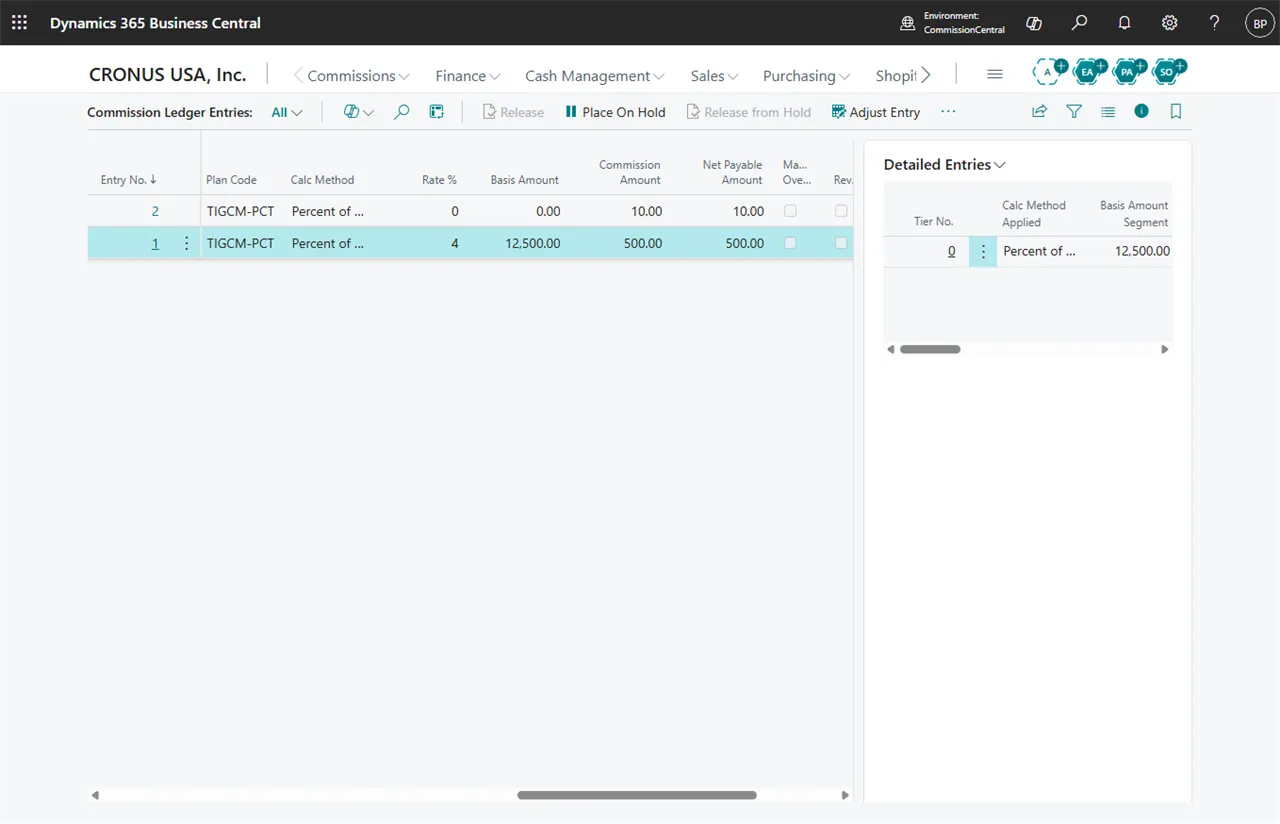 Figure: the commission ledger after posting. This capture uses the demo data, where Approval Mode is Automatic. The $500 entry therefore reads Payable instead of Calculated — see the note in Step 5. Manager Hierarchy is on in the demo data as well, which is where the second entry comes from.